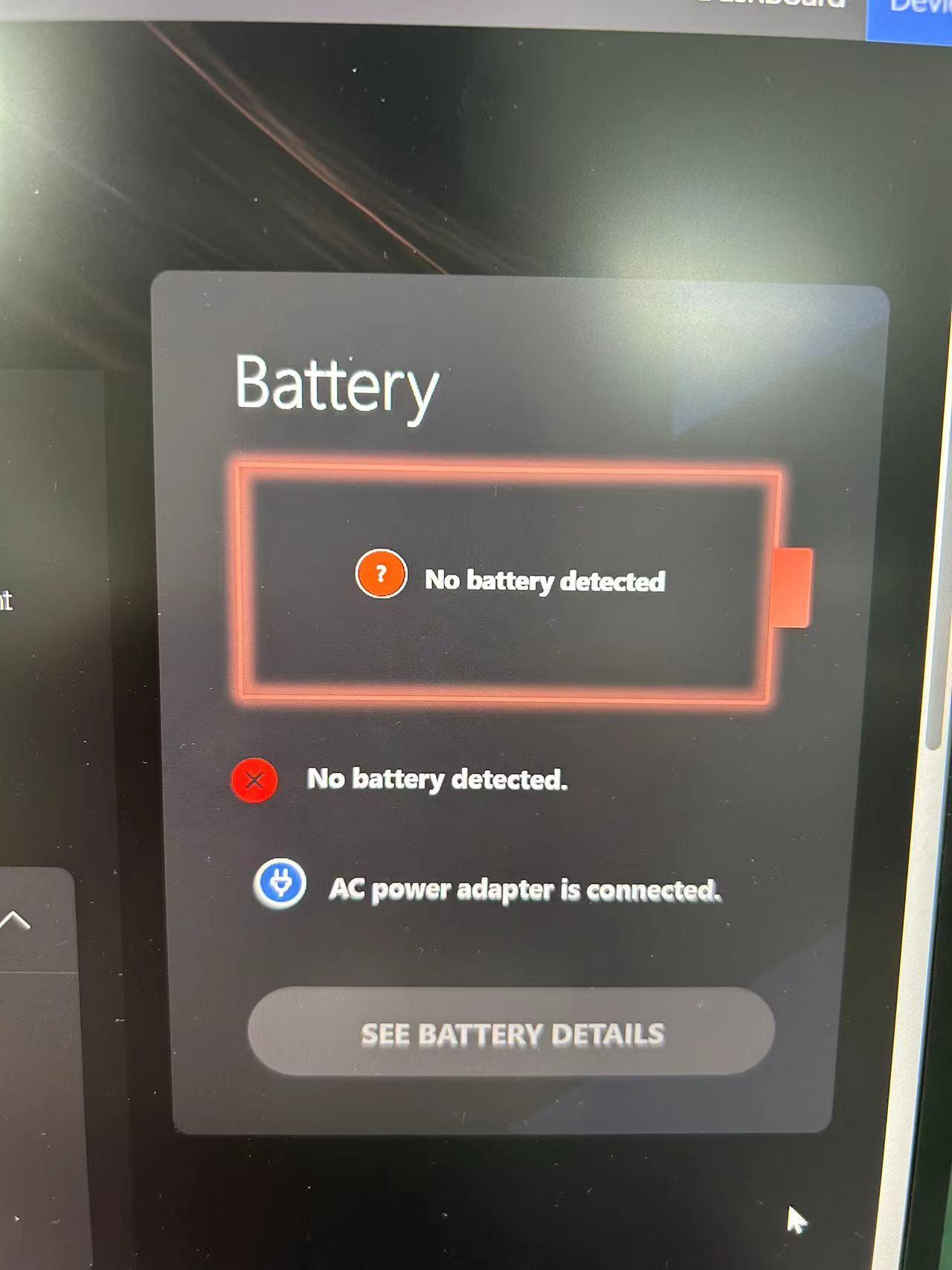
When a Lenovo laptop battery is not detected, Windows or Lenovo software may report that no battery is detected, show a missing battery icon, or fail to display battery information. This can be worrying, but the message does not automatically mean that the battery needs replacement.
A battery that is detected but not charging is a different problem. In that situation, Windows can usually identify the battery even though its charge level does not increase. With a Lenovo laptop battery not detected issue, the system may be failing to communicate with the battery at all. The cause could involve Windows, a driver, firmware communication, the battery connector, the charging circuit, or the battery itself.
This guide explains the difference between these symptoms, covers safe non-invasive checks, and shows how to interpret the results. If the battery remains missing after appropriate software checks, or if there are signs of physical damage, professional diagnosis is safer than repeatedly changing drivers or opening the laptop.
What “Battery Not Detected” Means on a Lenovo Laptop
A Lenovo laptop battery not detected message means that the operating system or another system component is not identifying the battery as an available power device. The laptop may still run from its AC adapter, but it may shut down immediately when the adapter is removed because Windows cannot confirm that a working battery is connected.
The visible symptoms can vary by Lenovo model and Windows version. A missing battery entry does not, by itself, identify the failed component.
- The battery icon or percentage may be missing from the Windows taskbar.
- Windows may display a warning that no battery is detected.
- Battery information may be absent from system tools or Lenovo diagnostics.
- The laptop may run from the adapter but shut down when the adapter is disconnected.
- Device Manager may show a missing, disabled, or error-marked battery-related device.
- The problem may have appeared after a Windows update, driver change, firmware change, impact, or liquid exposure.
The same message can be produced by several different faults. Therefore, the notification is a symptom rather than a confirmed diagnosis. IndiRepair approaches these cases by checking whether the problem is limited to Windows or whether the laptop has lost communication with the battery at a broader hardware level.
For readers who need a battery-focused assessment after completing the safe checks, the Lenovo laptop battery replacement service is available as a possible next step. A diagnosis should still determine whether replacement is appropriate before a part is selected.
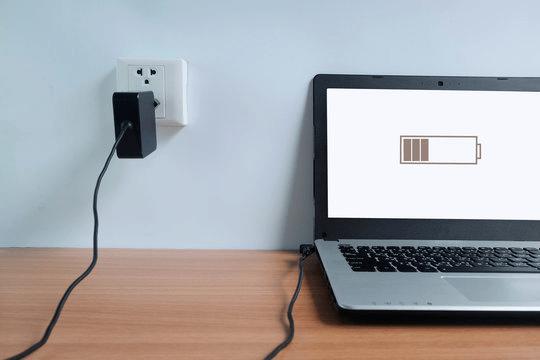
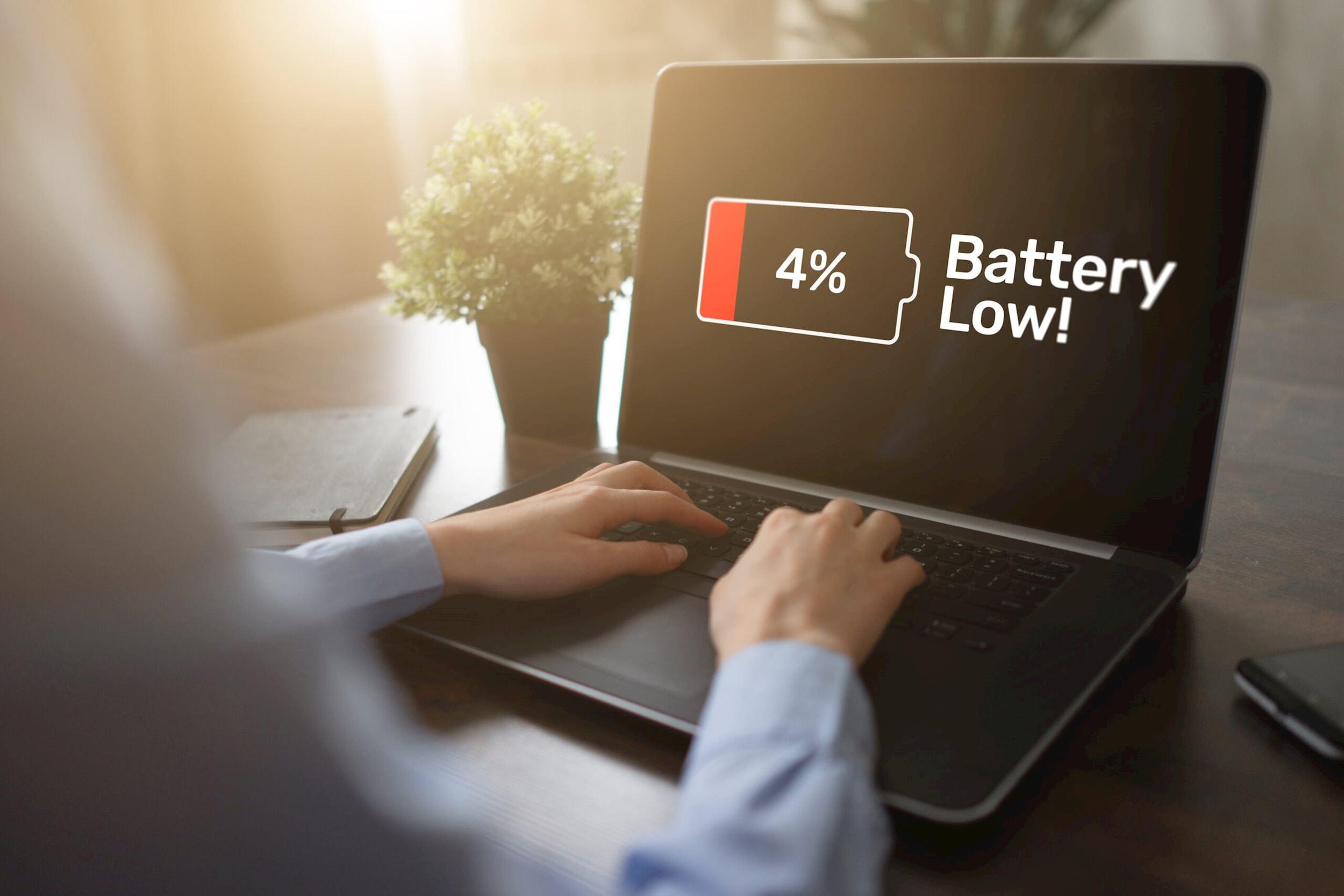
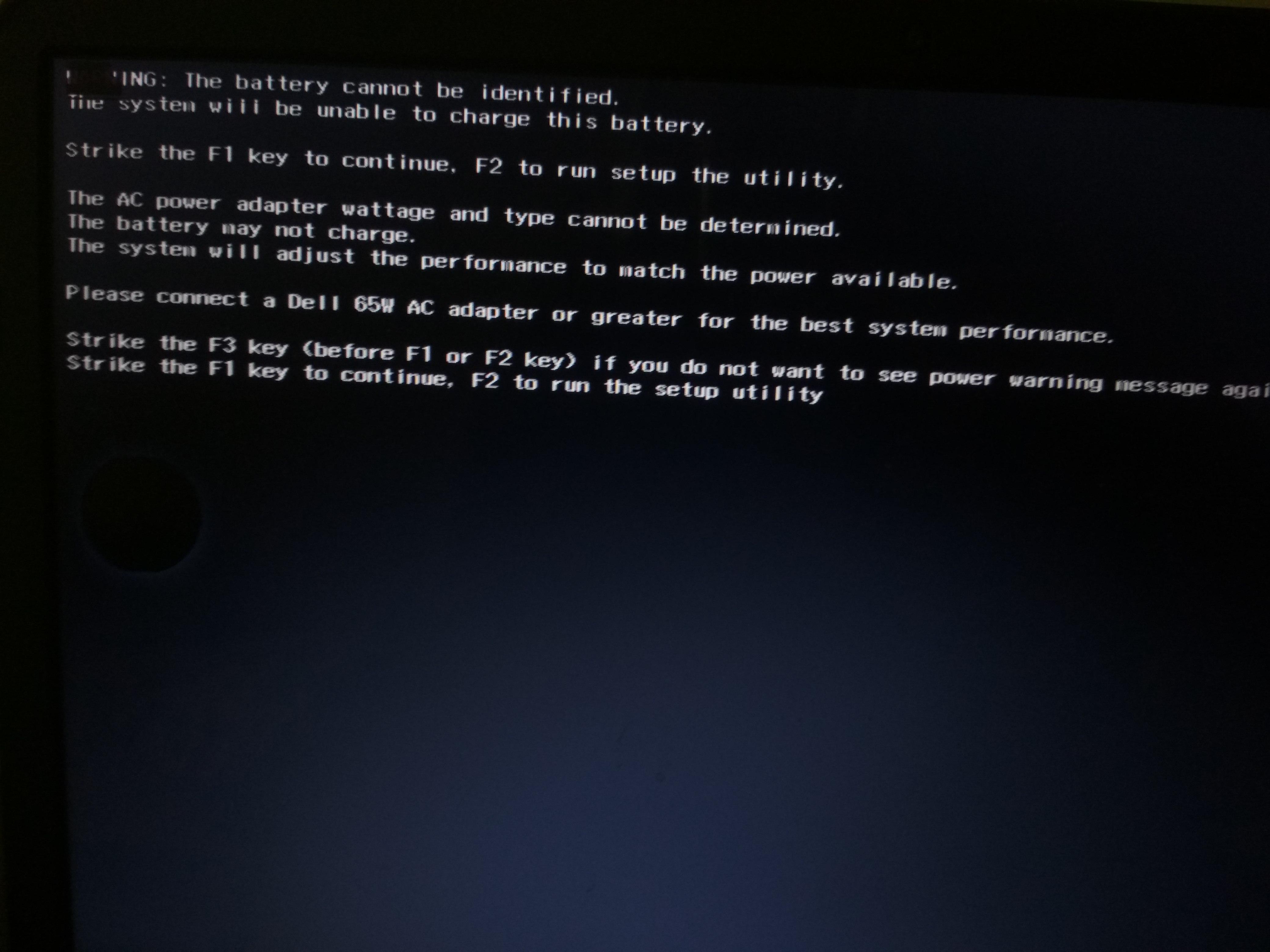
The example below represents the type of warning a user might see. Lenovo interfaces vary by model and Windows version.
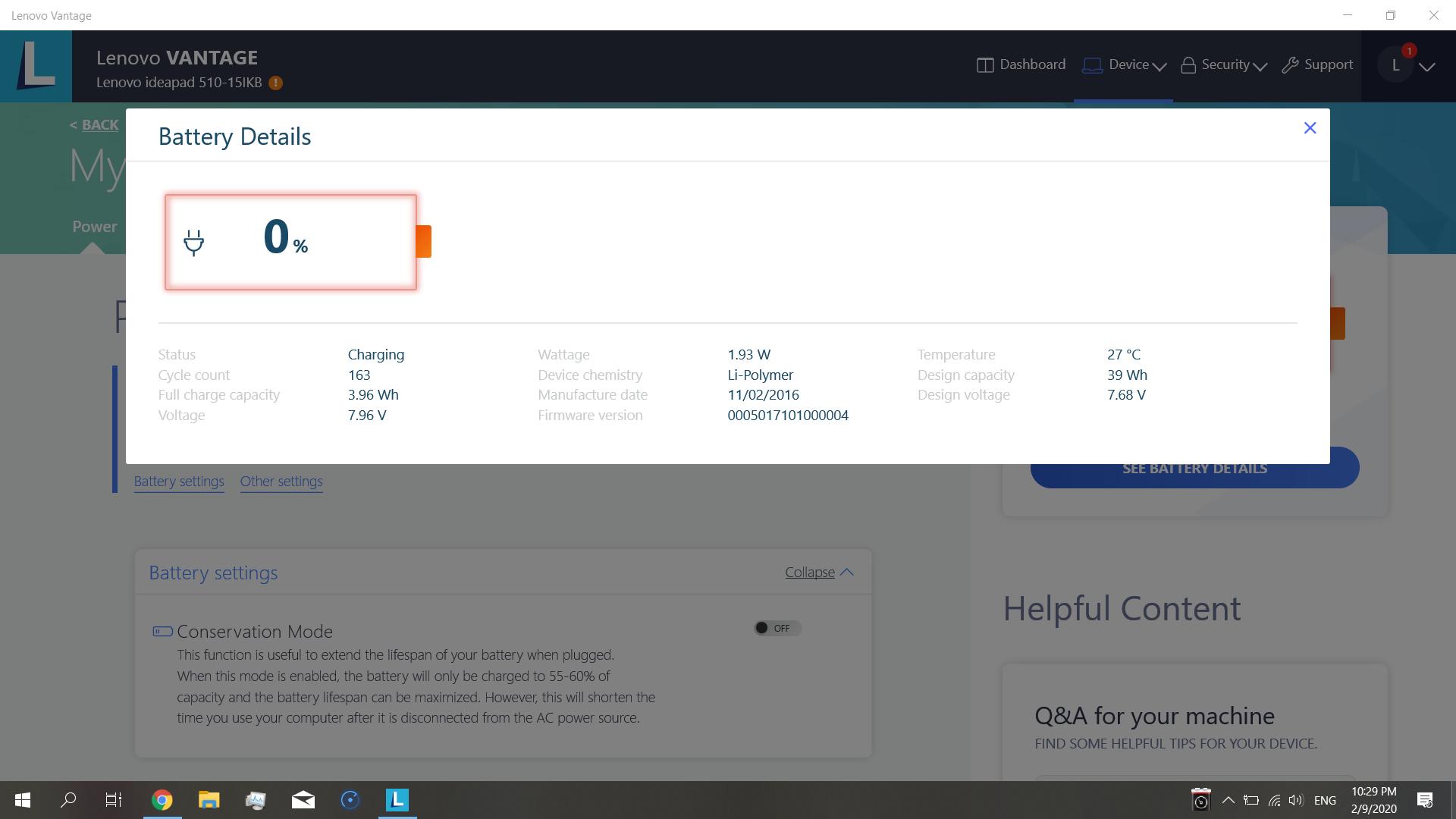
Use the exact message, missing icon, and any Device Manager error as evidence to guide the next checks, not as proof that one particular component has failed.
How the Symptom Differs from “Not Charging”
| Observation | What it may suggest | Diagnostic direction |
|---|---|---|
| The battery is absent from Windows or system information. | A detection or communication problem involving Windows, drivers, firmware, the battery, the connector, or the laptop power circuitry. | Check Windows entries and supported diagnostics, then compare the result with any available firmware or hardware information. |
| The battery appears with a percentage but the percentage does not increase. | A charging, adapter, charging-control, battery-health, or power-management problem may be present. | Confirm that the battery remains visible before investigating charging behavior. |
| The laptop works on the adapter but powers off when unplugged. | The battery may be unavailable, disconnected, unable to provide power, or not being recognized. | Look for physical warning signs and use model-appropriate diagnostics rather than assuming a battery replacement is required. |
| The issue began immediately after a software or firmware change. | A driver or firmware interaction is possible, although timing alone does not prove causation. | Record the change and check current Lenovo and Microsoft guidance for the exact model and Windows version. |
Detection and charging can overlap. For example, a battery communication fault may prevent Windows from showing both the battery percentage and its charging state. The important first question is whether the system can identify the battery at all.
Possible Causes of a Lenovo Battery Not Being Detected
A Lenovo battery not detected problem can originate in software or hardware. The following are possible causes, not confirmed findings. The same visible warning can occur for very different reasons.
1. Temporary Windows or Power-Management Communication Error
A temporary Windows error can prevent the battery status from appearing correctly. A stalled power-management service, an interrupted resume from sleep, or an incomplete device refresh may make the battery seem absent even though the underlying hardware is still functional. A full shutdown and restart can sometimes restore communication, but a successful restart does not prove that the issue is permanently resolved.
2. Battery, ACPI, Chipset, or Power-Management Driver Problem
Windows relies on system drivers and firmware communication to identify battery hardware. A driver may be missing, corrupted, disabled, or incompatible with the current system state. This can lead to a Lenovo battery driver not detected situation or to a battery entry that appears with an error in Device Manager.
Driver names and available categories are not identical on every Lenovo model. Avoid treating one universal driver name or one fixed menu path as applicable to all systems.
3. Recent Windows, Driver, BIOS, or Firmware Change
If the battery disappeared after a Windows update, driver installation, BIOS update, or system recovery, the timing is useful evidence. It does not necessarily prove that the update caused the fault. A changed driver, firmware interaction, or unrelated hardware failure may have appeared at the same time.
Model-specific Lenovo and Microsoft guidance should be checked before attempting a rollback, reinstall, or firmware procedure. Installing an update intended for another model can create additional problems.
4. Battery Connection or Laptop Power-Circuit Problem
The battery may not be communicating with the laptop because of a connector problem, an internal connection issue, damage near the charging or power-management circuit, or another hardware fault. This becomes more plausible when Windows and available diagnostics cannot see the battery, especially if the problem followed an impact, liquid exposure, or visible port damage.
5. Internal Battery Fault
The battery itself may have an internal fault that prevents normal communication with the laptop. A battery can also become unavailable because its protection circuitry has entered a fault state. The Windows message alone cannot distinguish this from a connector or motherboard-side problem.
6. Model-Specific Compatibility or Firmware Issue
Lenovo laptops differ in battery design, connector arrangement, firmware menus, reset features, and diagnostic options. A model-dependent compatibility issue or firmware limitation may require the exact product documentation or hardware assessment. Do not assume that a procedure suitable for one Lenovo series applies to another.
Why the Message Does Not Confirm Battery Replacement
A battery replacement is only one possible solution. Before choosing a part, establish whether the battery is missing from Windows only or whether it is also absent from supported Lenovo diagnostics or other model-appropriate system information.
- A restart or supported driver refresh may restore a temporary software connection.
- A Windows-only issue may leave the battery visible to supported firmware or hardware diagnostics.
- A battery, connector, or laptop power-circuit fault may remain unresolved across software checks.
- A replacement must match the exact Lenovo model and required specifications, which should be verified against official Lenovo documentation.
With experience across 500+ laptop repairs, IndiRepair focuses on identifying the underlying fault before recommending a replacement. This helps avoid buying an incompatible battery when the actual issue is a driver, connector, or laptop-side power problem.
Book your Lenovo laptop battery replacement with IndiRepair
Safe Troubleshooting Before Opening the Laptop
Begin with reversible, non-invasive checks. Keep the laptop on a suitable power source if it remains stable, but remember that running from an adapter does not prove that the battery is healthy or detected.
Stop using the laptop and do not continue with hands-on inspection if you notice any of the following:
- Battery swelling, case separation, or a panel being pushed outward.
- Smoke, sparks, a burning or chemical smell, or extreme heat.
- Liquid exposure, exposed wires, melting, or a visibly damaged charging port.
- A damaged adapter or cable that could create an electrical or fire risk.
Do not puncture, squeeze, bend, or open a lithium-ion battery. Any internal battery disconnect, emergency reset, or removal procedure must be verified against the exact Lenovo model’s official documentation.
Safety Gate and Initial Observations
- Turn off the laptop and disconnect unnecessary accessories. This reduces distractions while you inspect the exterior and record the original symptom. If the machine is unstable or unusually hot, do not keep restarting it; move directly to professional assessment.
- Check for physical warning signs without opening the chassis. Look for swelling, case separation, unusual heat, liquid exposure, burning smells, smoke, or visible connector damage. Any of these signs means you should stop DIY work and avoid charging the device until it has been assessed safely.
- Observe how the laptop behaves on and off the adapter. Note whether it runs only from external power, shuts down when unplugged, shows a battery icon, or displays a percentage. A shutdown when the adapter is removed is evidence of unavailable battery power, but it does not identify whether the battery, connector, or power circuit is responsible.
- Record when the problem began. Write down whether the issue followed a Windows update, driver change, BIOS or firmware change, drop, liquid exposure, or other event. This timeline can help separate a possible software change from a developing hardware fault.
Low-Risk Power and Connection Checks
- Perform a clean shutdown and restart. Shut down Windows fully, disconnect the adapter for a short period, and then start the laptop again. If the battery returns, the initial problem may have been a temporary communication error; continue observing it because a recurring disappearance needs further investigation.
- Check the external power path. Confirm that the adapter is firmly connected to the laptop and wall outlet, and inspect the cable and charging connector for visible damage. Do not use a damaged adapter or repeatedly bend the connector. A stable adapter connection can support diagnosis, but it cannot prove that the battery is working.
- Use only a known-compatible power source when appropriate. If a suitable alternative is available, verify that it supports the exact Lenovo model before testing it. Do not assume that every USB-C port or Lenovo adapter provides the same charging function. If the laptop behaves differently with verified compatible power, record that result rather than treating it as a confirmed battery diagnosis.
- Check again after the laptop has cooled and restarted. If the battery appears only after cooling or a restart, note the pattern. Avoid repeated forced shutdowns or removing power during updates, because those actions can introduce additional software or firmware problems.
Windows and Lenovo Diagnostic Checks
These checks help determine whether the problem is limited to Windows or affects wider battery communication. Menu names, diagnostic tools, and available Lenovo software vary by model, Windows version, and installed software. Record the result of each check before making another change.
Check Windows Battery and Device Entries
- Review the battery information available in Windows. Check whether Windows shows a battery percentage, battery status, or any battery device. If the battery icon is missing but another system tool can still identify the battery, the problem may be limited to the Windows interface or a related software component.
- Inspect the battery-related category in Device Manager. Look for a missing entry, a warning symbol, a disabled device, or an error message. A missing category can suggest a broader communication problem, while a listed device with an error may point toward software or driver handling.
- Record the exact device name and error text. Capture the wording before removing, reinstalling, or updating anything. Precise information is more useful than a general statement that the Lenovo battery is not showing in Device Manager.
- Restart Windows after a permitted device refresh. If official guidance supports a driver refresh or device re-detection action for the exact system, restart and check whether the battery entry returns. If it does, continue monitoring for recurrence; if it remains absent, move to supported diagnostics rather than repeatedly applying the same change.
Check for Recent Windows, Driver, or Firmware Changes
- Compare the symptom date with recent system changes. Review when the battery stopped appearing and compare that time with Windows updates, Lenovo updates, driver changes, firmware changes, or recovery actions. A close timeline is a clue, not proof that one update caused the problem.
- Check current Lenovo Support guidance for the exact model. Look for model-specific battery, chipset, power-management, BIOS, or firmware information. Verify the model and operating-system configuration before downloading anything, because an update for a different Lenovo model may be unsuitable.
- Install only verified, model-appropriate updates. Use stable power and follow the published instructions. Do not interrupt firmware work or begin it when the laptop shows dangerous battery symptoms. If the instructions are unclear, pause and seek model-specific assistance.
- Document a possible update relationship. If the problem appeared immediately after a change, keep the update name and date. Use supported rollback or recovery options only when official guidance permits them; a rollback is not automatically the correct fix for every Lenovo battery not detected after Windows update situation.
Run Supported Lenovo or Windows Diagnostics
- Open the diagnostic option available for the exact Lenovo model. Lenovo diagnostic access and names vary, so verify the current tool and procedure using official model documentation. A generic instruction found for another series may not apply.
- Run the battery or power-related test in a stable state. Keep the laptop connected to suitable power if it is safe and stable, then record the exact result, reference code, or failure description. Do not interpret a vague warning as a confirmed component failure.
- Compare the diagnostic result with Windows. If a supported diagnostic can identify the battery while Windows cannot, the issue may be limited to Windows or its drivers. If both Windows and available diagnostics cannot identify it, hardware communication becomes more likely, although only further assessment can confirm the cause.
- Save the result for escalation. Keep screenshots, error text, reference codes, and the timeline of changes. This information can help a technician distinguish a software symptom from a battery, connector, or laptop-side finding.
After meaningful troubleshooting, IndiRepair recommends treating each result as a clue rather than automatic proof that one component has failed. For example, a missing Windows entry can be software-related, while a battery that is absent from both Windows and supported hardware diagnostics may require internal inspection.
Get your Lenovo laptop battery checked by IndiRepair
Interpreting Results and Model-Dependent Limits
The most useful diagnosis comes from comparing several observations: whether Windows sees the battery, whether supported Lenovo diagnostics see it, how the laptop behaves when unplugged, and whether there are physical warning signs.
| Observation | What it may suggest | Next decision |
|---|---|---|
| The battery returns after a clean restart or supported software refresh. | A temporary Windows or power-management communication problem is possible. | Monitor for recurrence and investigate further if the battery disappears again. |
| Windows cannot see the battery, but supported firmware or hardware diagnostics can. | The problem may be limited to Windows, a driver, or system-level battery reporting. | Use model-specific software guidance and avoid replacing the battery based only on the Windows message. |
| Neither Windows nor available firmware or diagnostics can see the battery. | A battery communication issue, connector fault, battery fault, or laptop power-circuit problem is possible. | Arrange hardware diagnosis before choosing a replacement part. |
| The laptop shuts down when unplugged and the battery remains unavailable. | The laptop may not be receiving usable battery power, but the failed component is not yet confirmed. | Stop repeated software changes and seek professional assessment if safe checks do not restore detection. |
| There is swelling, smoke, sparking, liquid damage, melting, or extreme heat. | A potentially unsafe battery or power condition may be present. | Stop using and charging the laptop and arrange safe professional handling. |
Firmware and Internal Battery Checks Are Model-Dependent
Lenovo models differ in battery placement, connector design, firmware menus, emergency reset features, and service procedures. Some systems may have an internal battery, while others may provide different model-specific service access. These differences make universal instructions unsafe and unreliable.
- Use the exact model’s official maintenance or support documentation for any battery disconnect or removal procedure.
- Verify any emergency reset method, firmware menu, diagnostic code, or compatibility detail before using it.
- Do not open the chassis if you cannot confirm the correct procedure or if the battery shows signs of damage.
- Do not update firmware solely because the battery is missing unless the exact model documentation supports that step.
A result can narrow the possibilities without confirming the diagnosis. A technician may need to inspect battery communication, the connector, charging circuitry, firmware interaction, and replacement compatibility before recommending a part.
When to Stop DIY Troubleshooting and Seek Professional Diagnosis
Stop DIY work immediately if the laptop or battery presents a safety risk. Software troubleshooting should not continue when physical damage suggests that the battery or power system may be unsafe.
- Swelling, case separation, melting, smoke, sparks, or a chemical or burning smell.
- Extreme heat, liquid exposure, exposed wires, or visible connector damage.
- A damaged charger, cable, charging port, or power connector.
- Repeated shutdowns, unstable power behavior, or a laptop that operates only from the adapter after safe checks.
Professional diagnosis is also appropriate when the battery remains undetected after a clean restart, supported Windows checks, and model-appropriate diagnostics. Repeatedly installing drivers, changing firmware, or opening the chassis without verified instructions can make the situation harder to diagnose.
A repair assessment may need to consider the battery, connector, charging circuit, firmware communication, and compatibility of any replacement. If diagnosis indicates that a Lenovo battery replacement is appropriate, it can be considered as the next repair option rather than assumed from the warning alone.
How to Prepare for a Repair Assessment
- Record the exact Lenovo model and Windows version.
- Note when the battery stopped being detected and whether the issue followed an update, impact, liquid exposure, or another event.
- Keep Windows, Lenovo, or diagnostic error text and reference codes.
- Describe whether the laptop runs from the adapter and whether it shuts down when unplugged.
- Report any swelling, heat, smell, smoke, liquid damage, or visible connector problem.
- Back up important data if the laptop is stable enough to do so, but do not continue using a device with dangerous battery symptoms.
Frequently Asked Questions
Q: Why does my Lenovo laptop say no battery is detected?
A: The message means that Windows or another system component is not identifying the battery normally. Possible causes include a temporary Windows communication error, a missing or corrupted battery-related driver, a firmware interaction, a battery connector issue, an internal battery fault, or a problem in the laptop’s power-management circuitry. The message alone does not confirm that the battery needs replacement. Start by checking for physical warning signs, then perform a clean restart and review Windows battery and Device Manager entries. If the battery remains absent from Windows and supported diagnostics, hardware assessment is more appropriate than repeatedly changing software settings.
Q: Is a battery not detected problem the same as a Lenovo battery that is not charging?
A: No. A battery that is not charging is usually still visible to Windows with a percentage or status, even though the charge level does not increase. A not-detected message means that Windows or another system component is not identifying the battery normally. The two problems can overlap if a communication fault prevents both battery detection and charging information from appearing. Check first whether the battery is visible, then assess charging behavior. If the battery is absent from Windows and supported diagnostics, do not assume that changing the charger or replacing the battery will solve the problem without further diagnosis.
Q: What should I check if my Lenovo battery is not showing in Device Manager?
A: First record whether the battery category is missing entirely, disabled, or marked with an error. Restart the laptop and check again before making driver changes, because a temporary Windows device-refresh problem can sometimes clear after a clean restart. Then use model-appropriate Lenovo or Windows diagnostics and review official support guidance for the exact model and operating-system version. Avoid repeatedly removing drivers or installing generic packages without knowing what the system requires. If the battery remains absent, the laptop shuts down when unplugged, or power behavior is unstable, professional diagnosis can help distinguish a software issue from a battery, connector, or laptop-side fault.
Q: Can a Windows 11 update cause a Lenovo battery to stop being detected?
A: A problem that appears after a Windows 11 update may involve a changed driver, a firmware interaction, or an unrelated hardware fault that happened at the same time. The timing is useful evidence, but it does not prove that the update is responsible. Record the update date and any related error message, then check Lenovo and Microsoft guidance for the exact model and Windows version. Use rollback or recovery options only when supported instructions permit them. If the battery is also missing from model-appropriate diagnostics, a Windows change may not be the whole explanation and hardware assessment may be needed.
Q: Should I replace the Lenovo battery as soon as it is not detected?
A: No. A Lenovo laptop battery not detected message identifies a detection symptom, not a confirmed failed battery. The underlying cause could be Windows, a driver, firmware communication, the battery connector, the charging circuit, or the battery itself. Check for safety risks, perform low-risk Windows checks, and use supported diagnostics before choosing a replacement. If the battery is absent across Windows and available hardware diagnostics, or the laptop has unstable power, professional diagnosis can determine whether the battery or another component is responsible. Any replacement should match the exact Lenovo model and verified compatibility requirements.
Conclusion
A Lenovo laptop battery not detected message does not, by itself, prove that the battery has failed. Begin with safety checks, then use a clean restart, external power checks, Windows battery and Device Manager information, and supported Lenovo diagnostics. Compare the results rather than treating one notification as a complete diagnosis.
If detection does not return, the laptop shuts down when unplugged, or the system shows swelling, heat, smoke, liquid damage, or other warning signs, stop DIY troubleshooting. IndiRepair has practical experience diagnosing laptop problems and can help assess whether the issue involves the battery, its connection, or the laptop’s power circuitry.
Choose a replacement only after diagnosis confirms that it is appropriate and compatible. When professional assessment is the safer next step, consider Lenovo laptop battery replacement with IndiRepair rather than repeatedly changing drivers or opening the laptop without model-specific guidance.
About the Author: Khan Rahil is a diploma holder in Computer Hardware with over 5 years of hands-on experience in laptop repairs and Senior Technician at IndiRepair. He has overseen hundreds of screen replacements, ensuring quality and customer satisfaction.