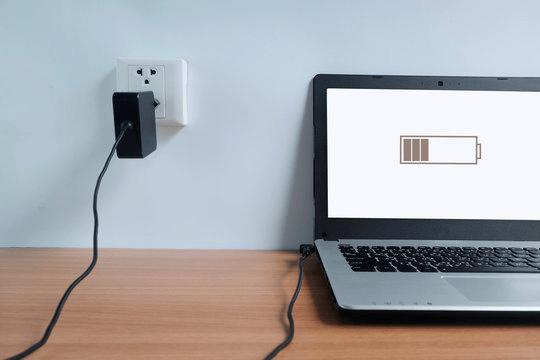
Is your ASUS laptop not charging but plugged in? A connected charger with a battery percentage that stays unchanged—or falls—does not automatically mean the battery has failed. A charging limit, unsuitable power supply, temperature-related protection or hardware fault can produce similar symptoms.
The safest route is to establish what the laptop is doing, check the external power supply and confirm any model-specific charging settings before considering replacement. The checks below explain what each result suggests, where software checks may help and when further home testing is inappropriate.
What Does Connected Power Without Charging Mean?
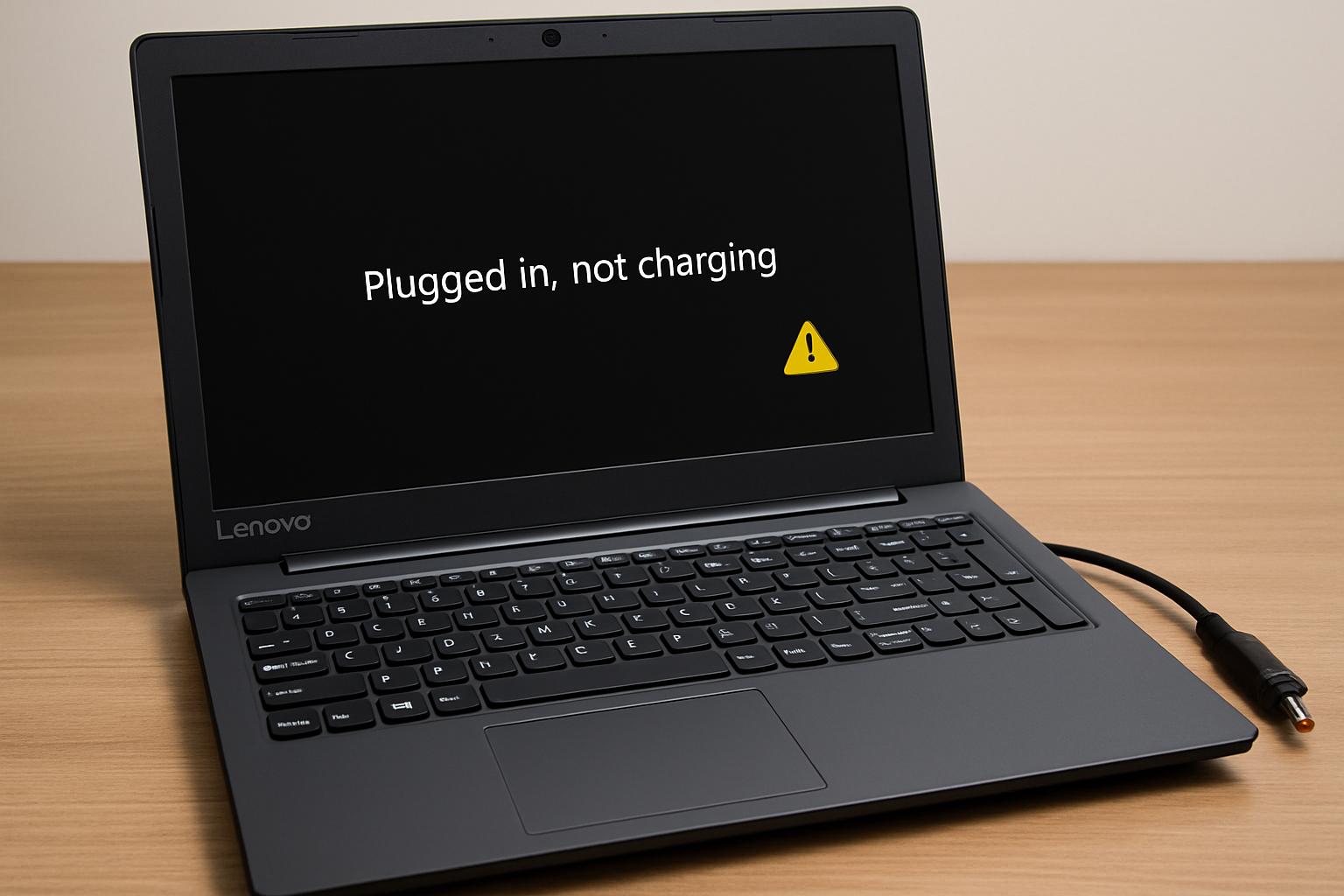
When an ASUS laptop says plugged in but not charging, it may be detecting external power without adding energy to the battery. Detection alone does not establish that the adapter supplies enough power or that the battery can accept a charge.
A percentage that stays near a configured charging limit is different from one that steadily falls during use. A laptop with no lights or other power response belongs to a different diagnostic branch again.
Safety warning: Swelling, case distortion, smoke, burning smells, sparks or unusually hot connectors make further charging tests inappropriate. Stop using the equipment and disconnect mains power only if safe. Do not open the laptop, press on a distorted case or puncture a suspect battery. Smoke or an active fire requires moving away and contacting emergency services.
The following checks apply only when the laptop, charger and connections have no visible damage or safety warning signs.
Quick Orientation Before Deeper Troubleshooting
- Record the starting symptom. Note the battery percentage, exact charging message and whether the laptop operates with the charger connected. A stable reading, declining reading and complete lack of power need different follow-up checks.
- Confirm the accessible connections and outlet. If everything looks undamaged, make sure detachable connections are seated normally and the wall outlet works with another safe appliance. If charging resumes and the percentage rises, deeper software troubleshooting is unnecessary.
- Identify the exact model and adapter. Record the model from the laptop label or system information and the output details on the charger label. These allow comparison with the correct ASUS documentation; the laptop family name alone may not establish compatibility.
- Choose the relevant branch. A percentage that consistently stops at the same level warrants the charging-limit checks below. A falling percentage or failure to gain charge below that level warrants the external-power checks first.
- Separate a no-power symptom. If the laptop does not respond at all, use the safe external-power checks and the no-power guidance later in this article. Windows tools cannot help while the laptop cannot boot.
Possible Reasons Your ASUS Battery Is Not Charging
These are possible explanations, not diagnoses. Several faults can produce the same charging message.
- An intentional battery-care charging limit. Supported ASUS models may pause charging below full capacity to reduce time spent fully charged. Availability, settings and stopping thresholds vary by model.
- Inadequate or interrupted external power. An unsuitable adapter, faulty cable or poor outlet connection can prevent sufficient power from reaching the laptop, even when external power is detected.
- A damaged or unsuitable charging connection. A loose socket, damaged port or USB-C port that does not accept charging can interrupt the power path. Connector appearance does not establish charging support.
- Temperature-related charging protection. Charging may pause or change outside the model’s supported operating conditions. There is no single temperature rule suitable for every ASUS laptop.
- A software, firmware or controller-state issue. Battery reporting or charging control can behave incorrectly. The displayed message alone cannot distinguish this from a physical fault.
- A battery fault or substantial deterioration. A battery may stop accepting or retaining charge reliably. Poor capacity is relevant evidence, but it does not independently explain every charging failure.
- An internal charging-circuit fault. A fault elsewhere inside the laptop can resemble battery failure. Separating these possibilities generally requires professional testing.
If the evidence eventually points to the battery, Asus laptop battery replacement service is a relevant next option—not a substitute for checking the charger and charging configuration first.
IndiRepair has completed 500+ laptop repairs and has practical experience diagnosing and repairing laptop problems. The useful distinction here is between the symptom you can see and the component actually responsible: a charging message alone is not enough to choose a replacement part.
If you would prefer help establishing the cause, you can Book your Asus laptop battery replacement with IndiRepair.
Safe Troubleshooting by Diagnostic Area
Work through the relevant checks rather than trying every intervention. A repeatable change in charging behavior is more useful than several settings changed at once.
- Begin with the power supply. Unless the symptom clearly matches a configured limit, complete the external checks first. A supply problem makes later software results harder to interpret.
- Change one variable at a time. Record the percentage, charging message and workload before and after each change. Allow enough time to see a trend; an unchanged reading immediately after connection is not conclusive.
- Reassess safety throughout. Stop if unusual heat, smell, distortion or electrical damage appears. A warning sign overrides the remaining checks.
External Power, Charger and Charging Port
The aim is to establish whether suitable power reaches the laptop without opening it or manipulating electrical contacts.
- Try a known-working wall outlet. Bypass a suspect extension board and reseat safe, accessible detachable connections. If charging resumes, the external connection is implicated; there is no reason to assume battery failure from the original symptom.
- Inspect the equipment with power disconnected. Disconnect the adapter from mains power and visually inspect the cable, connector and laptop port. Exposed wires, scorching, melting, a damaged connector or an obviously loose socket mean testing should stop. Do not wiggle the plug repeatedly or insert tools into the port.
- Compare the adapter with the exact model requirements. Use the model’s official ASUS documentation to verify electrical ratings and connector requirements. A barrel plug that fits can still be incompatible. An uncertain match needs verification before another charging test.
- Verify the USB-C power path where applicable. Confirm that the chosen port accepts charging and that the adapter and cable support the required power-delivery specifications. If a dock is involved, compare with a documented compatible direct connection. Charging restored directly points toward the dock, cable or power arrangement rather than automatically toward the battery.
- Try a known-good, verified-compatible charger if available. Keep the laptop and workload otherwise unchanged. If charging returns, the original adapter or cable path becomes the leading suspect, although this substitution does not identify which part of that supply path failed. Skip this test if compatibility is uncertain.
- Compare light use with a shutdown period. Record the percentage, reduce demanding activity and observe the trend. Then, if safe, shut down normally with the compatible charger connected and compare the percentage after restarting. Charging only while shut down suggests a power-budget, workload or temperature dependency, not a confirmed battery diagnosis.
The model identification and charger label are the reference points for compatibility. Port shape and connector fit are only visual clues.
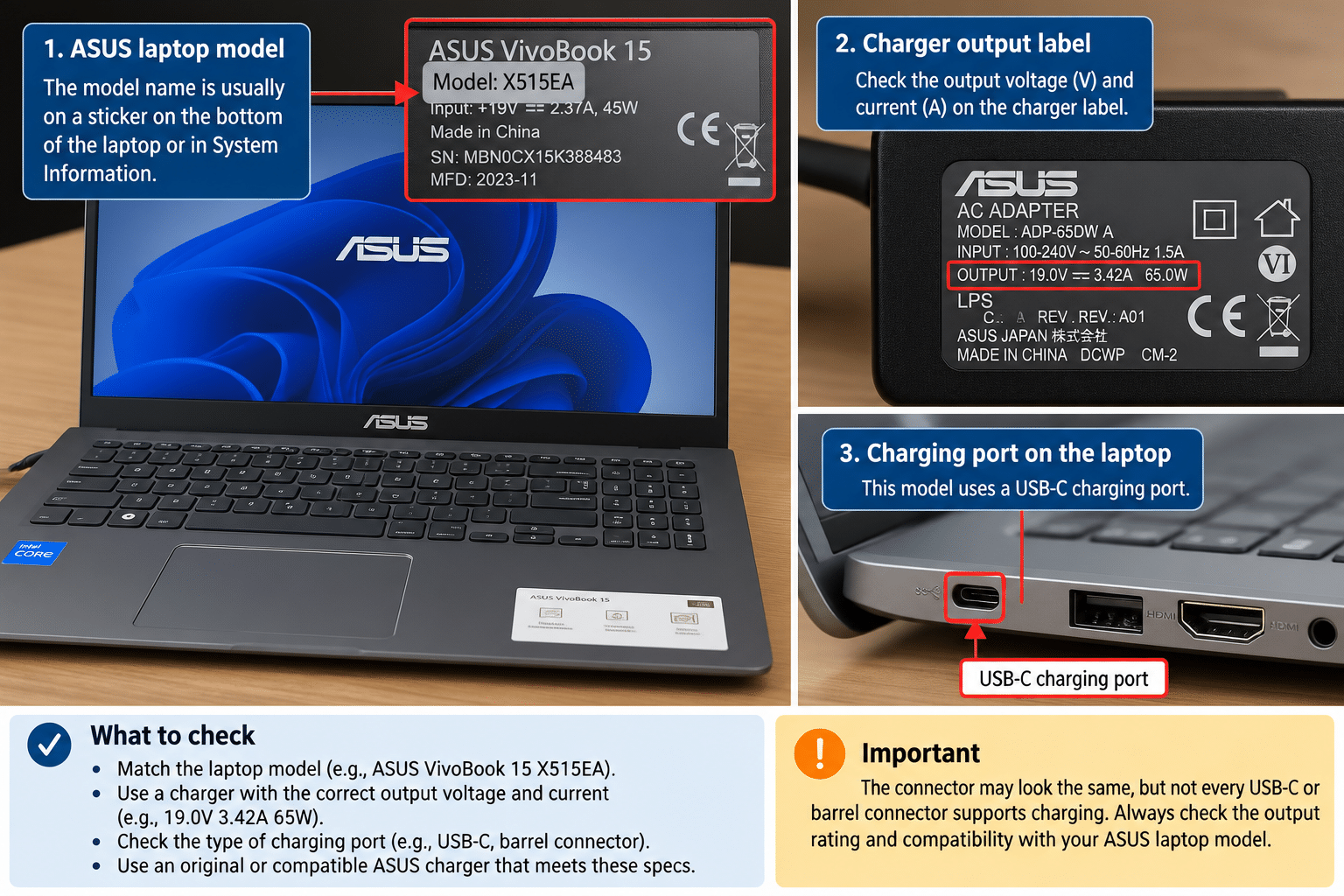
If the verified supply path does not explain the symptom, charging configuration and operating conditions are the next useful areas to assess.
Charging Limits, Workload and Temperature
- Find the model’s documented charging settings. Consult official ASUS documentation for the supported battery-care utility, if any. Do not assume that a setting, menu name or charge threshold shown for another ASUS model also applies to yours. If the feature is unsupported, move to the other checks.
- Compare the configured limit with the stopping percentage. A repeatable plateau near the documented limit, with otherwise normal operation, supports intentional charge limiting. A percentage well below that limit needs further investigation.
- Use the documented full-charge option only if needed. If the supported utility permits it, temporarily select that option and observe whether the percentage increases. A resumed charge supports a settings explanation. No change is a reason to continue diagnosis, not bypass protective controls or repeatedly switch modes.
- Reduce workload and allow normal cooling. Close demanding applications and place the laptop on a hard, ventilated surface. If it is hot, shut it down and allow it to return to normal operating conditions before retesting. Do not use a refrigerator or forced chilling. Improved charging suggests condition-dependent behavior but does not prove battery health.
- Confirm whether the problem persists under normal conditions. If the battery remains below the verified limit with a suitable charger and reduced workload, record that result. Continue to the relevant software or battery checks rather than repeatedly changing charging modes.
Conditional Windows and Controller Checks
These checks apply only when the laptop can start and power is reliable. They should address a plausible reporting or control issue, not distract from damaged hardware.
- Restart Windows normally. Save your work first, then compare both the charging message and the percentage trend after restarting. A corrected message with no actual charge gain suggests that reporting and charging behavior still need separate assessment.
- Review recent changes. Note whether the symptom began immediately after a software or firmware change. Timing is a clue, not proof of causation. Use the exact model’s ASUS guidance to determine whether a relevant remedy exists before changing drivers or firmware.
- Limit driver troubleshooting to relevant symptoms. If battery detection or reporting is also abnormal, follow applicable official Windows and ASUS guidance for the exact situation. Avoid third-party driver utilities and indiscriminate device removal. If reporting improves but charging does not, the physical power path remains unresolved.
- Use a controller reset only with model-specific instructions. An ASUS-documented embedded-controller or hard-reset procedure may be relevant, but adapter connection state, button duration and prerequisites can differ. Follow only the procedure for your model. If none can be confirmed, skip the reset rather than guessing; unchanged behavior afterwards warrants further assessment.
- Treat firmware updates as conditional, not routine. Consider an update only when relevant ASUS guidance supports it and all power and update prerequisites are met. Unstable power makes an update unsafe. Never bypass battery or power safeguards; defer the update if reliable power cannot be assured.
Battery Health and Charging Evidence
- Run a supported ASUS battery diagnostic if available. Verify availability for the exact model and record the result or error wording. Interpret it using official guidance. A reported fault supports further battery assessment, while a pass does not rule out every intermittent charging problem.
- Generate a Windows battery report where supported. Open Command Prompt and run
powercfg /batteryreport, then open the report at the location Windows displays. Review design capacity, reported full-charge capacity and recent usage. A substantially reduced full-charge capacity suggests wear, but the report does not directly test the adapter, port or every charging component. - Compare reported health with real behavior. Consider existing observations of short runtime, unexpected shutdowns and the earlier charger tests. Agreement between poor runtime and adverse battery findings strengthens the case for battery assessment. There is no need to deliberately run the battery flat to produce evidence.
- Record unresolved results. Missing battery detection, persistent diagnostic errors or unchanged behavior with a verified-compatible known-good charger are useful details for a technician. None of these observations alone reliably separates every battery fault from an internal charging fault.
- End consumer testing at the chassis boundary. If the next proposed check requires opening the laptop, disconnecting an internal battery, probing contacts or repairing cells, stop and seek professional assessment. Those procedures are outside this guide.
In practical diagnosis, IndiRepair treats a changed result as evidence about the affected part of the power path—not automatic proof that a specific component has failed. Charging with another adapter narrows the possibilities; failure with both adapters still leaves several possible causes.
If the safe checks leave the cause unclear, you can get your Asus laptop battery checked by IndiRepair.
What the Results Mean and When Repair Is Appropriate
Home checks can separate an expected charging pause from several supply-related problems. They cannot reliably distinguish every battery, socket and board-level fault. A confirmed diagnosis requires evidence that identifies the faulty part, rather than simply reproducing the charging symptom.
How to Interpret the Remaining Symptom
- Stable percentage at a verified configured limit: This is consistent with intended battery-care behavior, especially when normal charging resumes after a documented setting change.
- Charging restored by a compatible known-good adapter: The original adapter or cable path is implicated. Battery replacement is not the default response.
- Charging only under lower load or while shut down: Available power, workload and temperature need consideration. This result does not isolate a defective battery.
- A charging icon with a flat or falling percentage: The icon is not proof of net charge gain. Workload, observation time, charging limits and supply compatibility all affect interpretation.
- Very poor runtime with corroborating battery findings: Battery assessment is justified. Unchanged charging behavior across verified supplies, however, can still involve the battery or internal charging circuitry.
When the Laptop Will Not Turn On or Charge
If your ASUS laptop won’t turn on or charge, the distinction between no power response and a blank display matters. No lights or other response is not the same as a laptop with illuminated indicators or running fans but no picture.
Windows checks are unavailable when the laptop cannot boot. The safe external-power checks and a verified model-specific reset, where applicable, are the relevant boundaries from this guide. Indicator-light colors and blink patterns need interpretation against the exact model manual; they do not have a universal ASUS meaning.
Persistent no-power behavior after those checks warrants professional power-path diagnosis. A depleted battery may be part of the situation, but replacing it without identifying why the laptop is unresponsive may not restore startup.
Battery Replacement Versus Other Power Repairs
- Battery replacement: Appropriate when diagnostic evidence identifies the battery as defective or unsafe for continued use. The replacement must be compatible with the exact laptop model.
- Other power repairs: A failed adapter, damaged socket or internal charging-circuit fault needs its own remedy. A new battery may leave the original fault unchanged.
- Safety boundaries: Swelling, liquid exposure, burning smells, sparking, exposed wires, melting, damaged connectors or abnormal localized heat rule out further home charging tests.
- Useful information for assessment: The exact model, adapter details, starting percentage, charging messages, behavior under load and shutdown, diagnostic results and completed tests help preserve the evidence.
- Repair estimates: The confirmed fault and required parts determine the appropriate repair and estimate. The plugged-in message alone is insufficient to establish either.
Conclusion
A connected charger and an unchanged percentage do not establish battery failure. An intentional charging limit, insufficient external power and a defective battery require different responses. The useful next decision follows the verified settings, compatible-power checks and observed charging behavior—not the status message alone.
If the problem persists or a safety concern rules out further DIY, consider Asus laptop battery replacement with IndiRepair. Professional assessment can help identify which part of the power path needs attention. Battery replacement should follow evidence of a battery fault, rather than be assumed necessary at the outset.
About the Author: Khan Rahil is a diploma holder in Computer Hardware with over 5 years of hands-on experience in laptop repairs and Senior Technician at IndiRepair. He has overseen hundreds of screen replacements, ensuring quality and customer satisfaction.