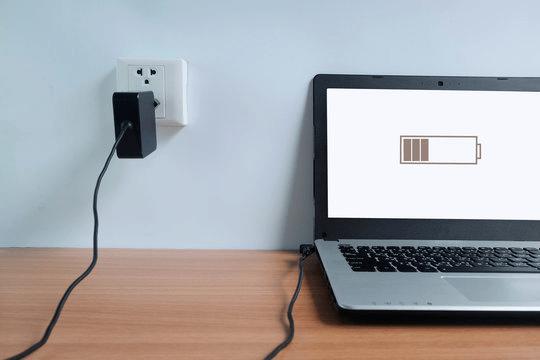
Is your ASUS laptop battery charging slowly even after it has been plugged in for a while? A percentage that barely rises can disrupt work and leave you waiting before taking the laptop anywhere. However, slow charging alone does not prove that the battery has failed or needs replacing.
This guide separates expected charging behavior from possible faults, takes you through safe checks in diagnostic order, and explains when professional inspection is more useful than buying replacement parts.
Is the Battery Charging Slowly, Stopping at a Limit, or Not Charging?
Before looking for a fix, it helps to identify what the battery percentage actually does. These patterns have different explanations:
- Slow charging: The percentage keeps rising, but more slowly than it did under comparable conditions.
- A repeatable plateau: Charging stops at approximately the same percentage each time. A supported battery-care setting may intentionally limit the maximum charge. Availability and behavior depend on the exact ASUS model.
- No increase or a falling percentage: Charging may be paused or unavailable, or the laptop may be using as much power as—or more power than—the supply provides.
- Slower gains near full: Charging commonly slows as the battery approaches full capacity. The final portion should not be compared directly with charging at a lower percentage.
There is no universal charging time for every ASUS laptop. Battery capacity, starting percentage, charger compatibility, workload, temperature, and charging controls all affect the result.
Safety first: Swelling, case deformation, smoke, burning smells, sparks, extreme heat, or damaged connectors make further charging tests inappropriate. Stop using the laptop and disconnect power only if it is safe. Do not open the laptop or press on a swollen battery. Liquid exposure, exposed wires, or melted parts also require professional assessment before further use.
If evidence eventually points toward a battery fault, Asus laptop battery replacement is a relevant option. A slow percentage increase on its own is not enough to make that decision.
Why Does an ASUS Laptop Take So Long to Charge?
Charging depends on the entire power path, not just the battery. Incoming power must support the laptop’s operation as well as replenish the battery.
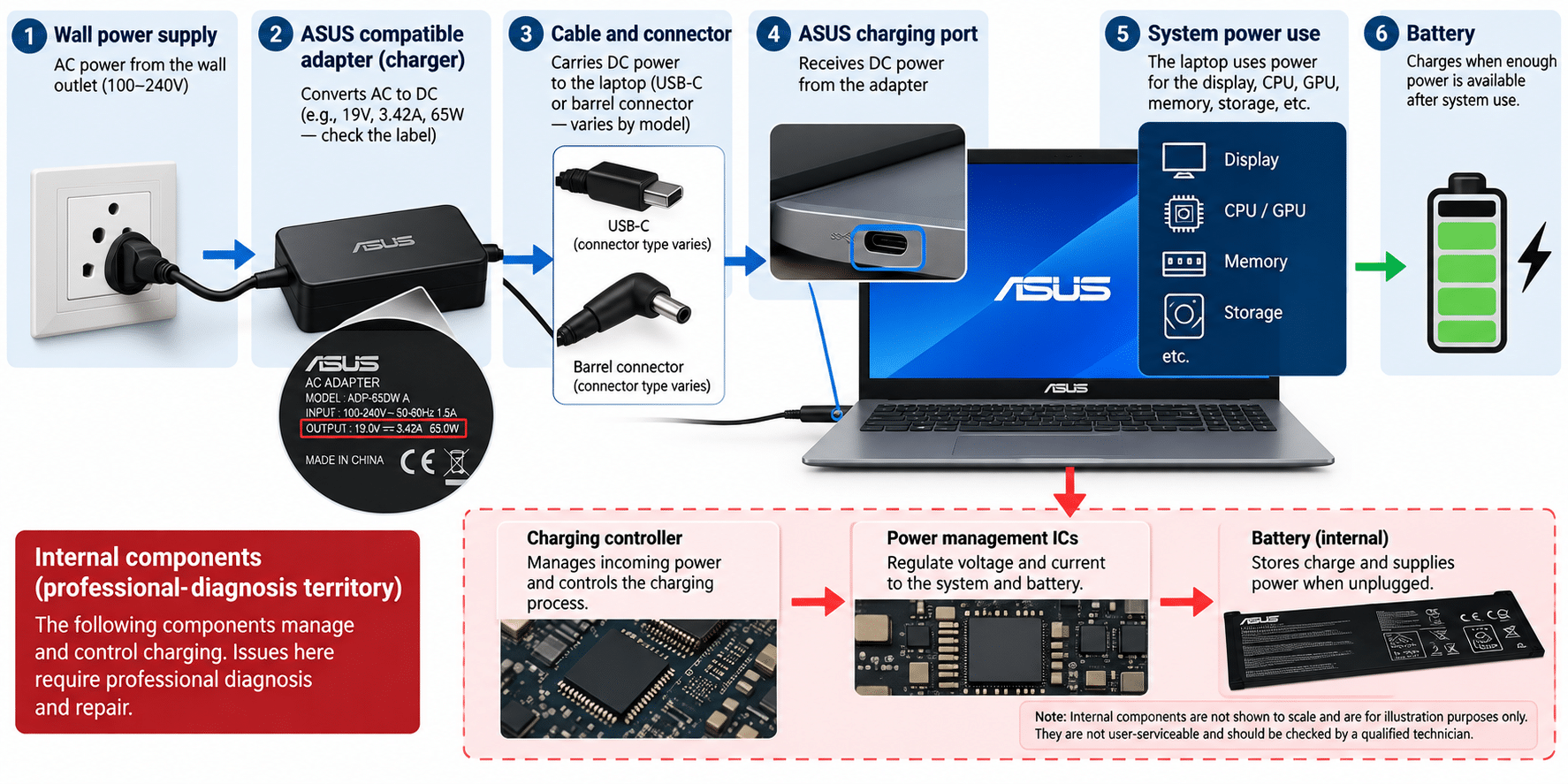
The following are possible causes. Their accompanying clues help narrow the investigation, but none is a confirmed diagnosis without supporting evidence.
- Inadequate or incompatible external power. An unsuitable adapter, cable, dock, or charging interface can limit the power reaching the laptop. An unreliable outlet connection can interrupt it. A problem that starts after changing chargers, or appears only through a dock, makes the external supply path particularly relevant.
- High workload or unsuitable temperature. Gaming, rendering, and other demanding tasks consume incoming power, leaving less available for charging. Temperature protection may also restrict charging. Improvement when the laptop is cool and idle supports this explanation.
- Charging settings. Supported battery-care controls may deliberately stop charging below full capacity. A stable endpoint is different from a battery percentage that continues rising slowly.
- Battery deterioration or a battery fault. Battery problems can accompany abnormal charging, especially alongside reduced runtime or unexpected shutdowns. However, reduced usable capacity does not automatically mean slow charging, and a capacity estimate cannot establish the cause by itself.
- Software, firmware, or charge-status reporting issues. A problem beginning after a system change deserves supported software checks. The displayed percentage may also be misleading. Timing alone does not prove that Windows caused the problem.
- Internal charging hardware problems. A damaged port, internal connection, or charging circuit can resemble a charger or battery fault. External observations cannot reliably distinguish all these components; internal electrical testing belongs with a qualified technician.
IndiRepair has completed 500+ laptop repairs and has practical experience diagnosing laptop problems. The useful distinction here is between noticing a charging symptom and identifying its cause: a battery replacement should follow evidence, not simply a long wait for the percentage to rise.
If you would rather have the problem assessed, you can book your Asus laptop battery replacement with IndiRepair before buying replacement parts.
Safe Troubleshooting from External Power to Battery Diagnostics
Work from the outside in. A controlled comparison is more useful than changing several settings and accessories together.
- Confirm that testing is safe. Proceed only if none of the warning signs above is present. Any new smell, distortion, sparking, or excessive heat is a reason to stop rather than complete the remaining checks.
- Record a baseline. Note the exact laptop model, starting charge percentage, charger in use, workload, and whether the percentage rises, stays fixed, or falls. This separates a consistent slow-charging pattern from a plateau or an intermittent connection.
- Change one variable at a time. Follow the groups below, comparing similar starting percentages over the same observation interval. A noticeable, repeatable difference is useful evidence; a comparison between a nearly empty battery and a nearly full one is not.
External Power and Charging Compatibility
Resolve supply-path questions before changing Windows settings. A charger that physically connects is not necessarily suitable for the laptop.
- Visually inspect accessible components with power disconnected. Look at the adapter, cable, connector, and accessible port surfaces without opening anything. Scorching, exposed wires, distortion, or visible port damage means testing should stop. Do not insert tools into the port or reuse damaged equipment.
- Try a known-working wall outlet. Seat intact detachable connections normally, without forcing them. If charging becomes stable, the original outlet or connection may have contributed. Do not continue using an outlet that is loose, damaged, or sparking; otherwise, move on to compatibility checks.
- Compare the adapter label with official requirements for the exact model. Check ASUS documentation for the supported connector and electrical output requirements. A matching plug or advertised wattage alone does not establish compatibility. If suitability is unclear, avoid experimenting with unrelated adapters and seek a verified compatible supply.
- Remove intermediate power-sharing equipment where supported. Connect a compatible charger directly to the laptop instead of through a dock or hub. Disconnect other devices sharing a multiport charger’s output. Improvement suggests the dock, shared power budget, or connection arrangement contributed; it does not yet identify a failed component.
- Confirm USB-C charging support. For an ASUS USB-C slow charging problem, verify that the selected laptop port accepts charging and that the adapter and cable support the USB Power Delivery capabilities required by the model. Not every USB-C port accepts power, and a phone charger may be inadequate. If the setup does not meet the documented requirements, use a verified compatible arrangement before assessing the battery.
- Compare with a known-good, model-compatible adapter and appropriate cable if available. Keep the workload and starting charge range similar. Improvement points toward the original supply path. If the behavior is unchanged, continue with operating conditions rather than assuming a new charger or battery will solve it.
Workload, Temperature, and Charging Settings
The laptop may be receiving power correctly but using much of it, limiting charging for temperature reasons, or intentionally stopping at a configured level.
- Reduce active workload. Close demanding applications and pause nonessential background tasks, then compare charging while the laptop is idle. Faster gains suggest operating demand is consuming charging headroom. If charging remains unusually slow, continue with temperature and shutdown comparisons.
- Allow a warm laptop to cool naturally. Use a hard, ventilated surface and keep vents unobstructed. Do not use ice, refrigeration, or forced rapid cooling. Improvement after cooling suggests temperature contributed, though it does not explain why the laptop became warm. Extreme heat or other warning signs require stopping, not another test.
- Compare charging while shut down. Save your work, note the percentage, shut the laptop down, and leave it connected to the same compatible supply for your chosen interval. After restarting, record the percentage. Better progress suggests operating demand or active-system behavior contributes, but does not prove the battery is healthy or Windows is faulty.
- Review supported ASUS battery-care settings. Use the exact model’s official documentation to identify available controls; utility names, menu paths, and limits vary. A configured limit that matches the repeatable stopping point explains a plateau more convincingly than a battery-failure assumption. If no matching limit exists, continue investigating.
- Adjust a charge limit only if a fuller charge is needed. Leave the limit enabled if it suits your use. When necessary, change it through supported controls and observe whether charging resumes above the previous endpoint. Disabling a limit is not a general speed fix; an unchanged result means the setting may not explain the symptom.
Windows Software and Battery Evidence
For ASUS slow charging on Windows 11, software checks are useful after external power and operating conditions have been considered. They cannot repair damaged cables, ports, or batteries.
- Save your work and restart Windows. Compare the displayed charging state and percentage progress with your baseline. A change may indicate temporary reporting or active-system behavior. If nothing changes, repeated restarts are unlikely to add useful evidence.
- Review relevant updates and official ASUS support guidance. Consider whether the symptom began after an update or software change. Use only supported drivers and utilities for the exact model, and compare behavior after any relevant change. Avoid third-party driver-updater tools and indiscriminate battery-driver removal; neither substitutes for checking the supply path.
- Run a supported ASUS battery diagnostic if available. Follow current official instructions for your model and record the result or error code. A reported problem is useful evidence for inspection. A passing result does not exclude every adapter, port, or intermittent charging fault, so retain your comparison notes.
- Generate a Windows battery report. Open Command Prompt and enter
powercfg /batteryreport. Windows normally displays the location of the generated HTML report; open that file to review it. If permissions prevent generation, use an administrator terminal only on a device you are authorized to manage. The report provides battery history and capacity estimates, not a direct charging-speed diagnosis. - Interpret capacity figures cautiously. Design capacity is the battery’s reported original capacity specification; full-charge capacity is its estimated current capacity when fully charged. A substantially lower full-charge capacity, especially alongside reduced runtime, supports concern about wear. Estimates and available history can vary, so this finding should lead to assessment—not an automatic replacement verdict.
- Consider firmware or a controller reset only when official guidance makes it relevant. Follow the exact model’s documented prerequisites and procedure rather than generic reset timings. If power is unreliable, do not attempt a firmware update. When guidance is unclear, professional assessment is safer than experimenting.
- Repeat the original comparison after a supported change. Use similar conditions to see whether the change made a repeatable difference. If the symptom remains unexplained, stop making unrelated software changes and bring the recorded evidence to a technician.
Interpret the Results and Decide When Professional Repair Is Needed
These checks can narrow the likely cause without conclusively identifying a failed part. A confirmed diagnosis requires evidence that distinguishes the suspected component from other explanations.
What the Charging Comparisons Suggest
- Better charging with a known-good compatible supply: The original adapter, cable, dock, or shared-power arrangement becomes more suspect. If several items changed together, the result does not identify which one was responsible.
- Better charging while idle or shut down: Workload, available power headroom, temperature, or active-system behavior likely contributes. This does not isolate a Windows fault.
- A plateau matching a documented charge limit: Intentional battery-care behavior is a reasonable explanation, rather than a slow-charging fault.
- Slower charging mainly near full: This can be expected. Persistent slow gains at comparable lower percentages deserve more investigation.
- Reduced runtime and low reported full-charge capacity: Battery wear becomes more plausible, but the power path still matters when explaining slow charging.
- Slow charging despite a verified compatible supply and low workload: Battery, port, internal charging hardware, and other model-specific causes remain unresolved.
For an assessment with IndiRepair, these comparison results are useful clues—not automatic proof that a particular component has failed. Persistent slow charging while shut down, with a suitable supply, makes further unrelated Windows changes less useful.
If the evidence remains inconclusive, you can get your Asus laptop checked by IndiRepair rather than guessing which part to replace.
DIY Limits and Repair Decisions
Professional inspection becomes appropriate when safe external checks cannot explain the behavior, or when the charging connection is physically unreliable.
- Immediate stopping conditions: Swelling, smoke, burning smells, sparking, abnormal heat, liquid exposure, or visible electrical damage rule out further charging comparisons. Disconnect power only if safe.
- Connection problems: A loose or intermittent connection, or charging that requires holding the plug at an angle, warrants inspection. Repeated bending or connector manipulation can worsen damage.
- Internal work: Battery disconnection, electrical probing, port repair, and charging-circuit diagnosis are outside this consumer guide.
- Useful inspection information: The exact model, adapter details, symptom history, charging-limit setting, comparison results, and diagnostic messages help make the investigation more focused.
- Evidence-led recommendations: A repair recommendation should explain why the evidence points toward the battery rather than the adapter, cable, port, or internal charging circuit.
- Conditional battery replacement: Replacement is relevant when diagnosis supports a battery problem. It is not a guaranteed solution to every slow-charging complaint.
If your results or professional diagnosis point toward the battery, Asus laptop Battery replacement with IndiRepair is a next step to consider. The decision should remain diagnosis-led, with replacement considered only when the findings justify it.
Frequently Asked Questions
Q: How long should an ASUS laptop battery take to charge?
A: There is no single correct charging time across ASUS laptops. Battery capacity, starting percentage, adapter compatibility, workload, temperature, and charging controls all affect the time needed. Charging also commonly slows near full, so that final portion is not a fair benchmark for the whole process. Any published charging-time claim needs to match your exact model and the manufacturer’s stated test conditions. A repeatable slowdown compared with the laptop’s previous behavior under similar conditions is more informative than comparison with another laptop. The controlled comparisons above help establish whether there is a genuine change.
Q: Will a higher-wattage charger make charging faster?
A: Not necessarily. A higher advertised wattage describes the adapter’s capacity, not the power your laptop will automatically accept. The laptop’s supported input, charging controls, cable capability, and adapter compatibility determine what is usable. A correctly compatible supply may improve charging if the current one is inadequate, but excess rated capacity does not override the laptop’s limits or normal slowing near full. USB-C charging also depends on the supported Power Delivery capabilities of the charger, cable, and laptop port. The exact model’s official requirements—not wattage alone—should guide charger selection.
Conclusion
Slow charging is a symptom, not proof of battery failure. A charging limit or normal slowing near full may explain the behavior without any faulty component. The most useful investigation starts with compatible external power, then considers workload, temperature, and settings before supported software checks and battery diagnostics.
When controlled comparisons still leave the cause unclear, professional inspection is more useful than speculative parts purchases. IndiRepair can be considered for that next assessment. Unsafe symptoms require stopping use rather than further testing, while any replacement decision should follow evidence identifying the underlying problem.
About the Author: Khan Rahil is a diploma holder in Computer Hardware with over 5 years of hands-on experience in laptop repairs and Senior Technician at IndiRepair. He has overseen hundreds of screen replacements, ensuring quality and customer satisfaction.